

HunTracker · Help
Managing your crotal tags
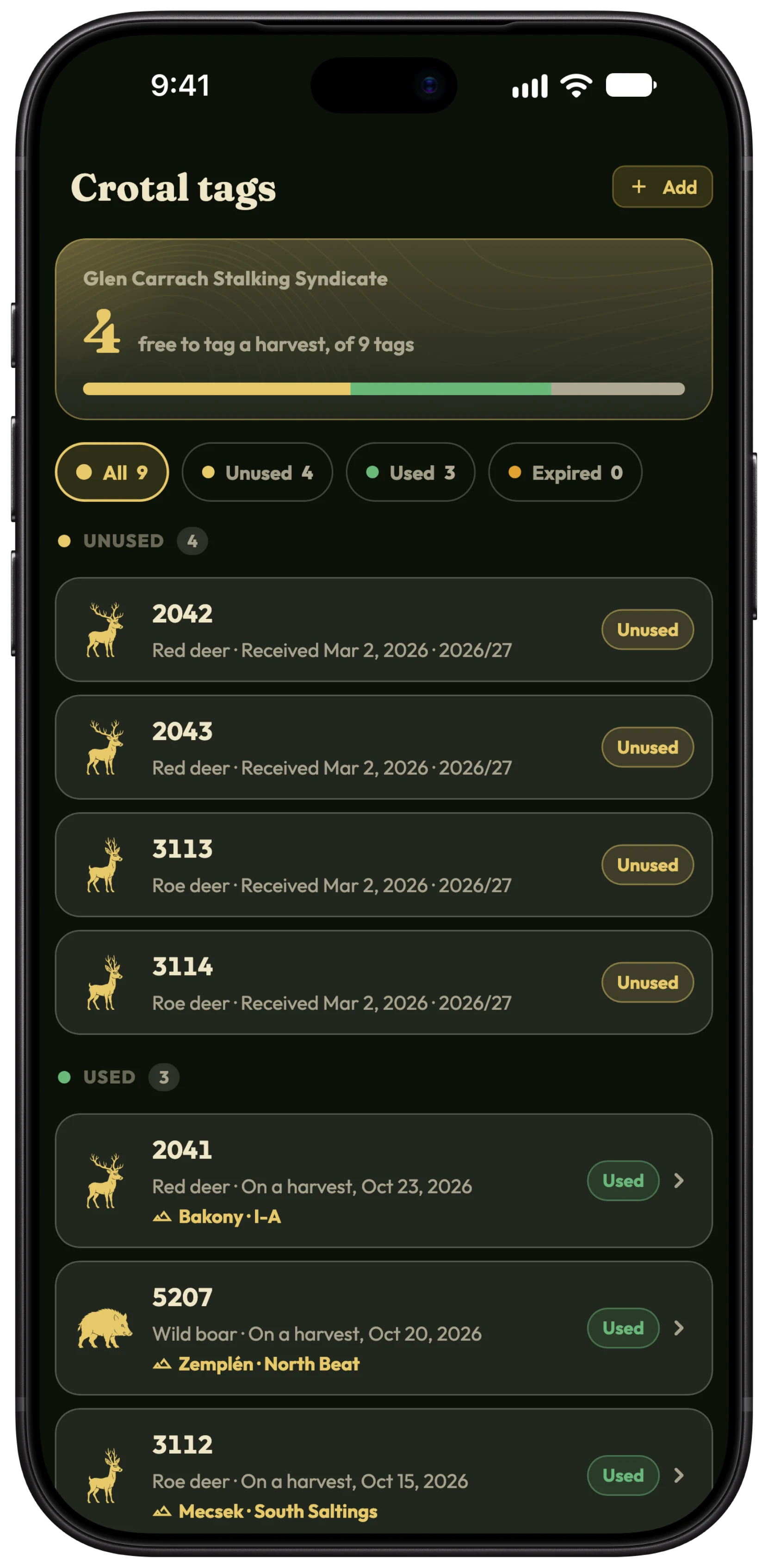
The tags your association hands out at the start of the season, in one list: which are free, which went on a harvest, and which are owed back.
Add your tags
- Open Hunter › Crotal tags, or the Crotal tags tile on an association's card.
- Tap Add and choose the Hunting association that gave them to you.
- Type the Tag numbers: one number, a run like 1201-1220, or several separated by commas.
- If you like, add the Species, the Hunting year and the Date received, then tap the Add button.
Tip A run keeps the first number's prefix and leading zeros, and numbers already on your list are skipped, so adding the same run twice does no harm.
Put a tag on a harvest
- Log the harvest as usual, then open it from the hunt's events.
- In the Crotal tag field, pick one of the association's unused tags for that species.
- The tag counts as Used straight away, and tapping it in the list opens the hunt.
Return what you did not use
Filter the list with Unused, Used, To return and Expired. A tag is expired when it is still unused and its hunting year has ended.
- At the end of the season, open the Expired tags.
- Tap Mark all as returned when you hand them back.
- Tap any single tag to set it to Returned, Lost or To return.
Free and Pro
Keeping one association's tags is free. With Pro, keep every association's tags in one list. Compare Free and Pro →
Questions and answers
Does HunTracker replace the official tag records?
No. It is your own list. Report harvests and return tags as your association and the law require.
What happens to my tags if I leave the association?
Used tags stay with their harvests. For the unused ones you choose: owed back, already returned, lost, or moved to another of your associations.
How many tags can I add at once?
Up to 500 in one go.
Still stuck?
Write to us and say which phone and app version you use. A real hunter on the team answers, usually within a day.