

HunTracker · Help
Statistics and exporting your hunting log
HunTracker adds up your journal for any period. Here is how to filter it, how the charts filter each other, and how to take your log out as a spreadsheet.
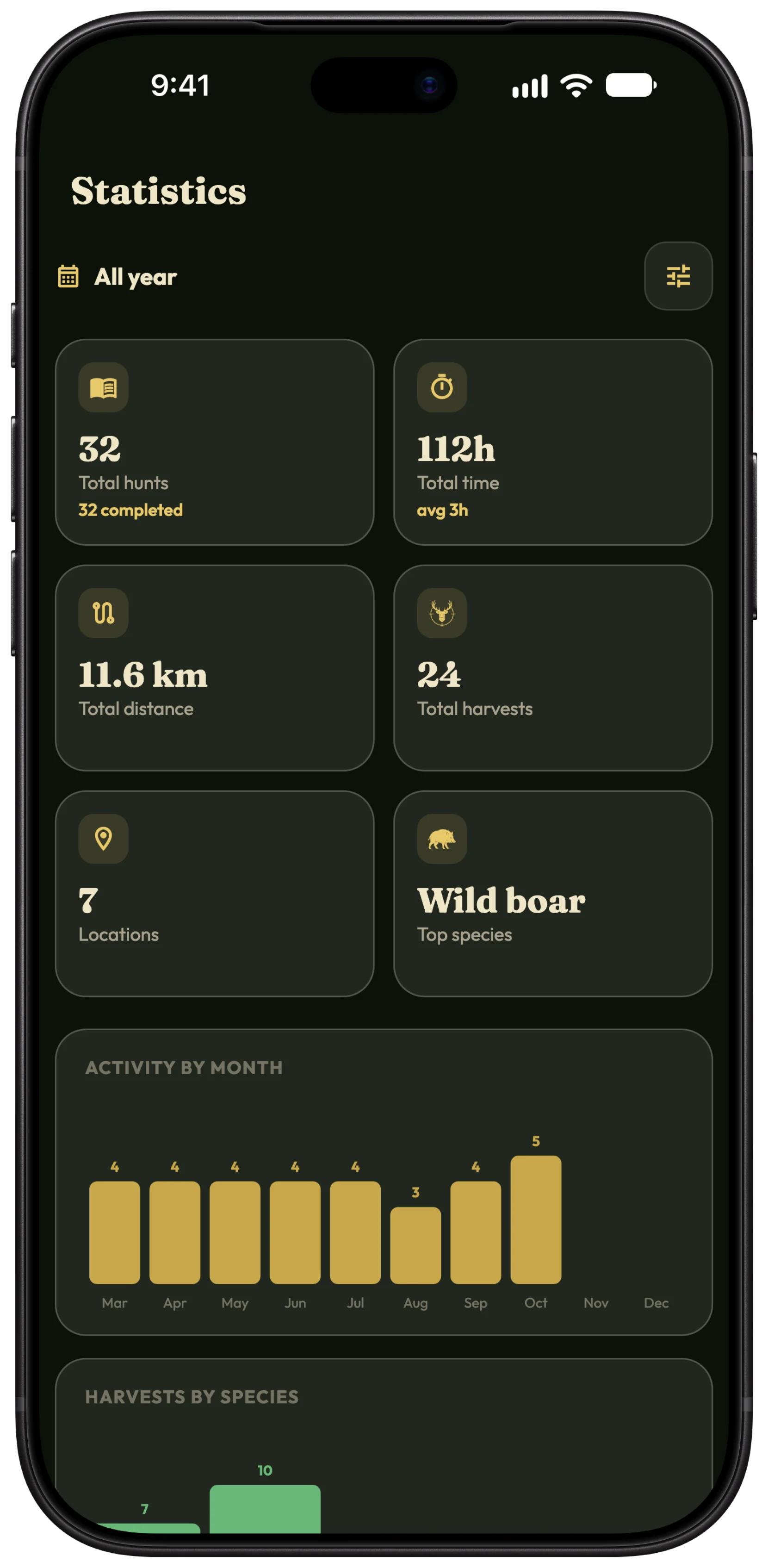
Filter the statistics
- Open Hunter › Statistics.
- Tap the filter button at the top to open Filters.
- Choose a period, from this month to all time or a Custom period, and narrow it by place, association, district or equipment set.
- Tap Apply filters. Active filters show as pills you can remove one by one.
Let the charts filter each other
Tap a bar in one chart, a species for example, and every other chart shows only that. Tap a bar in a second chart and both apply together. Tap a bar again to release it.
Export to CSV or Excel
- Open Hunter › Settings › Syncing and data.
- Under Export, choose CSV or Excel.
- Save or send the file. Excel gives one workbook with sheets for hunts, events, equipment and deadlines; CSV gives the same as a ZIP of files.
Tip Photos and videos are not part of the export; they stay in the app.
A copy of your personal data
- Open Hunter › Privacy.
- Under Your data, tap Export personal data, then Export data.
Tip This is a free copy of everything we hold about you, as a JSON file. It is not a backup you can load back into the app.
Free and Pro
The headline numbers are free. Pro adds the charts, the filters that combine, and export to CSV and Excel. The personal data copy is free for everyone. Compare Free and Pro →
More about hunting statistics →
Questions and answers
Are hunts shared with me in my statistics?
Your statistics are built from your own journal. Hunts others shared with you are not part of your export.
Can I open the export in Google Sheets or Numbers?
Yes. Both open the Excel file and the CSV files.
Still stuck?
Write to us and say which phone and app version you use. A real hunter on the team answers, usually within a day.