
HunTracker · Help
Setting up the map: overlays and offline maps
Everything on the hunt map is in one place: the Tools button. Here is what each switch does, which map to choose, and how to save maps for the places with no signal.
Choose the map
- Open a hunt and its map.
- Tap the round Tools button in the corner of the map. A gold dot on it means an overlay is on.
- Scroll to the Map section and pick Google or Mapbox.
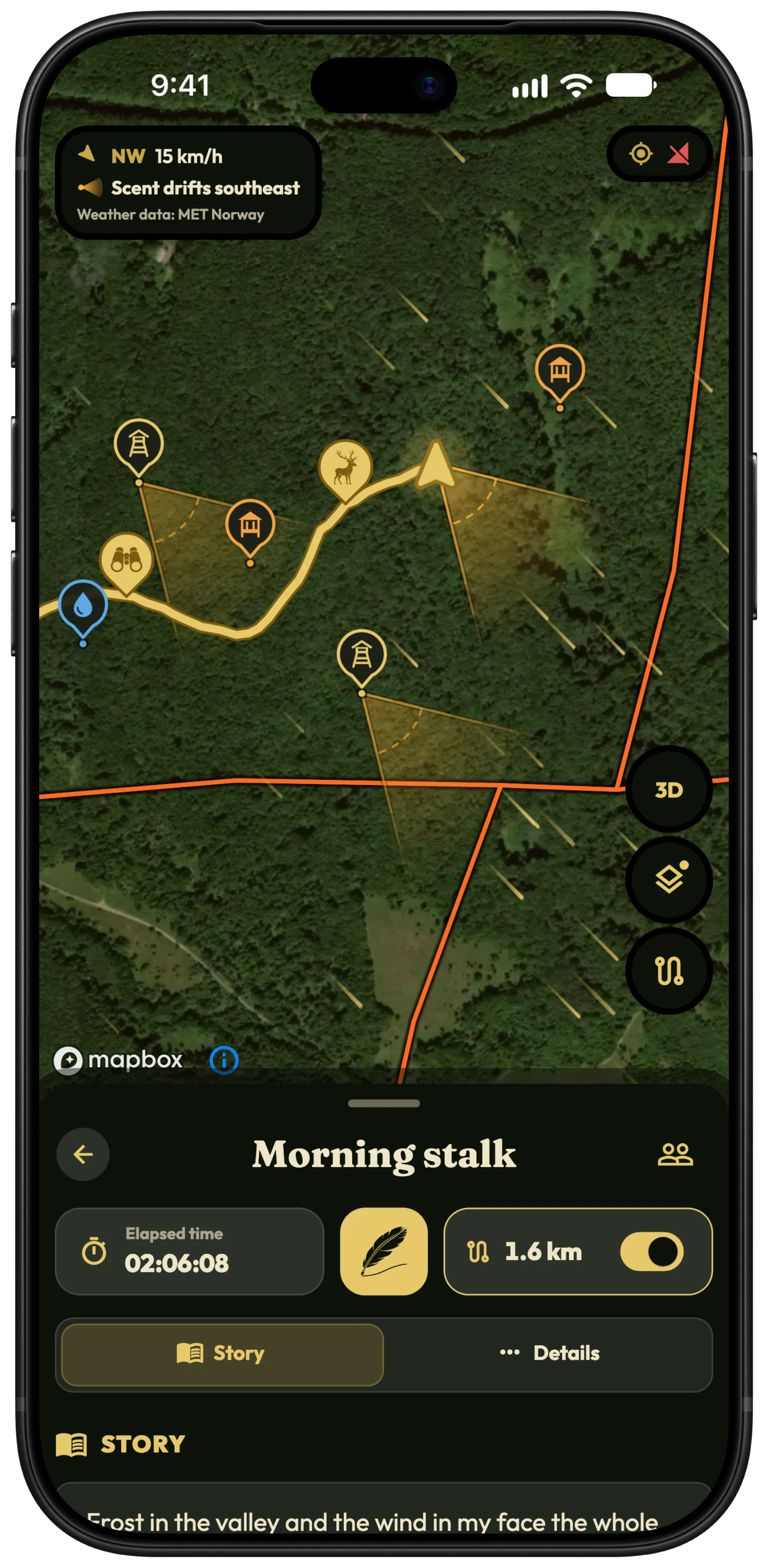
- With Mapbox, tap 3D on the map to tilt it and see the terrain; tap it again to look straight down.
Tip Both maps show satellite imagery. Mapbox adds 3D terrain and is the one the scent cone bends with the ground on. HunTracker remembers your choice on each device.
Wind and the scent cone
- Tap Tools and go to Overlays.
- Switch on Wind to see streaks drifting with the forecast wind.
- Switch on Scent cone to see where the wind carries your scent, from you and from the stands on your district map.
- Leave Adjust for terrain on, so valleys, ridges and slope winds bend the cone on the 3D map.
Tip The cone is an estimate from the forecast. Wind near the ground eddies around trees and buildings, so check it on the spot before you settle in.
Districts on the hunt map
- Tap Tools and find District maps.
- Switch on the maps you want to see: your own association's, or one shared with you.
- The hunt's own district stands out, the others are outlined, and stands, feeders and waters show where they are.
Measure a distance or an area
- Tap Tools, then Measure distance or Measure area.
- Tap the map to add points. Near a district border, points snap onto it.
- Use Remove the last point to undo, or Clear the measurement to start over.
- Tap Stop measuring when you are done.
Save maps for offline use
Hunting grounds are often where the signal ends. Save the map at home on Wi-Fi, and in the field the satellite map, the 3D terrain and the district borders keep working.
- Open Hunter › Settings › Offline maps.
- Under Save a map, choose Area around me, or save the part of the map you are looking at with Tools › Save this area for offline.
- Pick the Distance from the centre and, if you want single trees and rides, switch on High detail.
- Check the Estimated size and tap Save.
- Saved maps are listed with their size; tap Update when newer imagery is available, or Delete to free space.
Tip Download on Wi-Fi only is on by default. On mobile data the button changes to Save anyway.
Free and Pro
The hunt map with one pin per hunt is free, on Google's satellite map. Pro adds Mapbox with 3D terrain, wind, the scent cone, district maps, the measuring tool and offline maps. Without Pro, saved offline maps are deleted after 30 days. Compare Free and Pro →
Questions and answers
Why can I not choose Mapbox?
Mapbox and its 3D terrain are part of Pro, and the web app always uses Google. Free accounts see the Mapbox row with a Pro badge.
Do offline maps work in the web app?
No. Offline maps are saved on your phone or tablet, where you need them in the field.
Where does the wind come from?
From the weather forecast for the area you are looking at, refreshed as you move the map. It needs a connection to load; on a finished hunt, the wind recorded during the hunt is replayed instead.
Still stuck?
Write to us and say which phone and app version you use. A real hunter on the team answers, usually within a day.