

HunTracker · Help
Getting started: your first hunt
From the first sign-up to a finished hunt in your journal: what to tap, what the app fills in for you, and what you can add afterwards.
Create your account
- Download HunTracker from the App Store or Google Play and open it.
- Tap No account yet? and fill in your name and nickname.
- Enter your e-mail address and a password, and accept the terms.
- The next two steps are optional: your country, region and hunting association, and an Invitation code if a friend gave you one.
- Open the confirmation link we e-mail you, and you are in.
Tip Accounts are created in the phone app. The web app at web.huntracker.app is for signing in to an account you already have.
Start a hunt
- Tap New hunt in the bottom bar.
- Check what HunTracker filled in: the Hunting type, your default association and your favourite equipment set. Tap any of them to change it.
- Switch on Path if you want the route you walk recorded.
- Tap Start. The tab now says Active hunt, and on iPhone the hunt shows on the Lock Screen too.
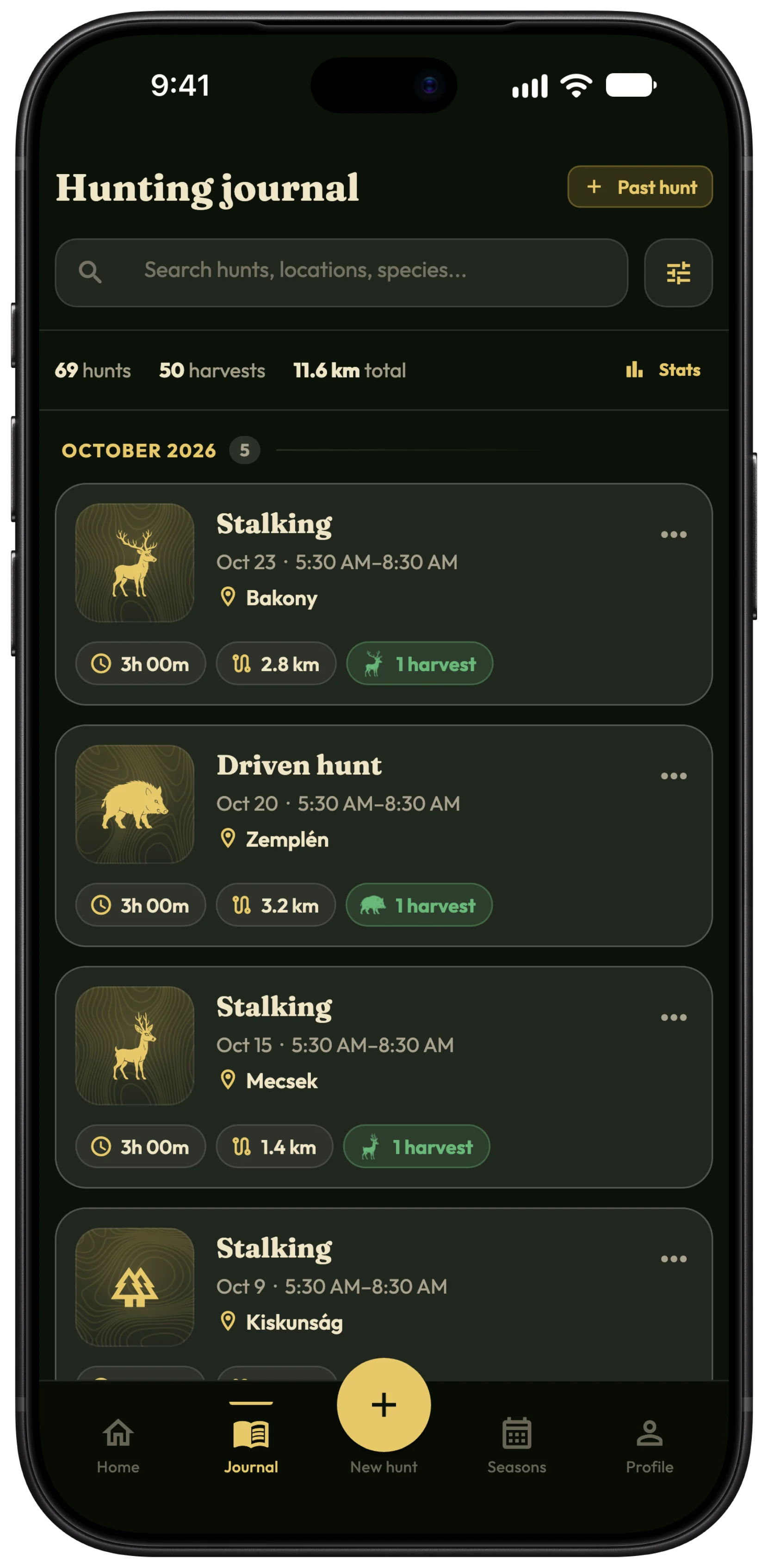
Tip Planning ahead? Schedule for later puts the hunt in your journal with a reminder and the forecast for the day. Forgot to start one? Past hunt in the journal adds a hunt that already happened.
Log a harvest or an observation
- During the hunt, tap the gold Record event button.
- Choose New shot, Observation or Other.
- For a shot, pick the Species and Sex and age, and add the distance, the shot placement, the result, the weight or the trophy if you like.
- Leave Record location on to pin it where you are standing.
- Tap Record shot. It appears in the hunt's events, with the time filled in.
Tip Logging works without signal. The crotal tag number goes on the harvest's own entry: open it from the hunt's events afterwards.
Finish the hunt
- Tap Finish hunt and confirm with Finish.
- Add photos with Add photo or video, and write the story of the day.
- The hunt is in your Journal, and stays editable: tap it to correct any detail.
Free and Pro
Hunts, harvests, observations and the text backup are free, with one located pin and one photo per hunt. Pro adds a pin for every event, GPS paths, up to 12 photos or videos per hunt, scheduled and past hunts, and sync across devices. Compare Free and Pro →
More about the digital hunting log →
Questions and answers
Can I start a hunt in the web app?
No. Hunts are started on the phone, where the GPS is. The web app shows and edits them afterwards.
Can I run two hunts at once?
No, one hunt at a time on a device. Finish the running hunt before starting the next.
Can I change the start time afterwards?
The finish time can always be changed; changing the start time is part of Pro.
Still stuck?
Write to us and say which phone and app version you use. A real hunter on the team answers, usually within a day.