

HunTracker · Help
Recording your GPS path
With Path on, HunTracker records the route you walk while the phone stays in your pocket. Here is how to switch it on, which permissions it needs, and what to do if the route has gaps.
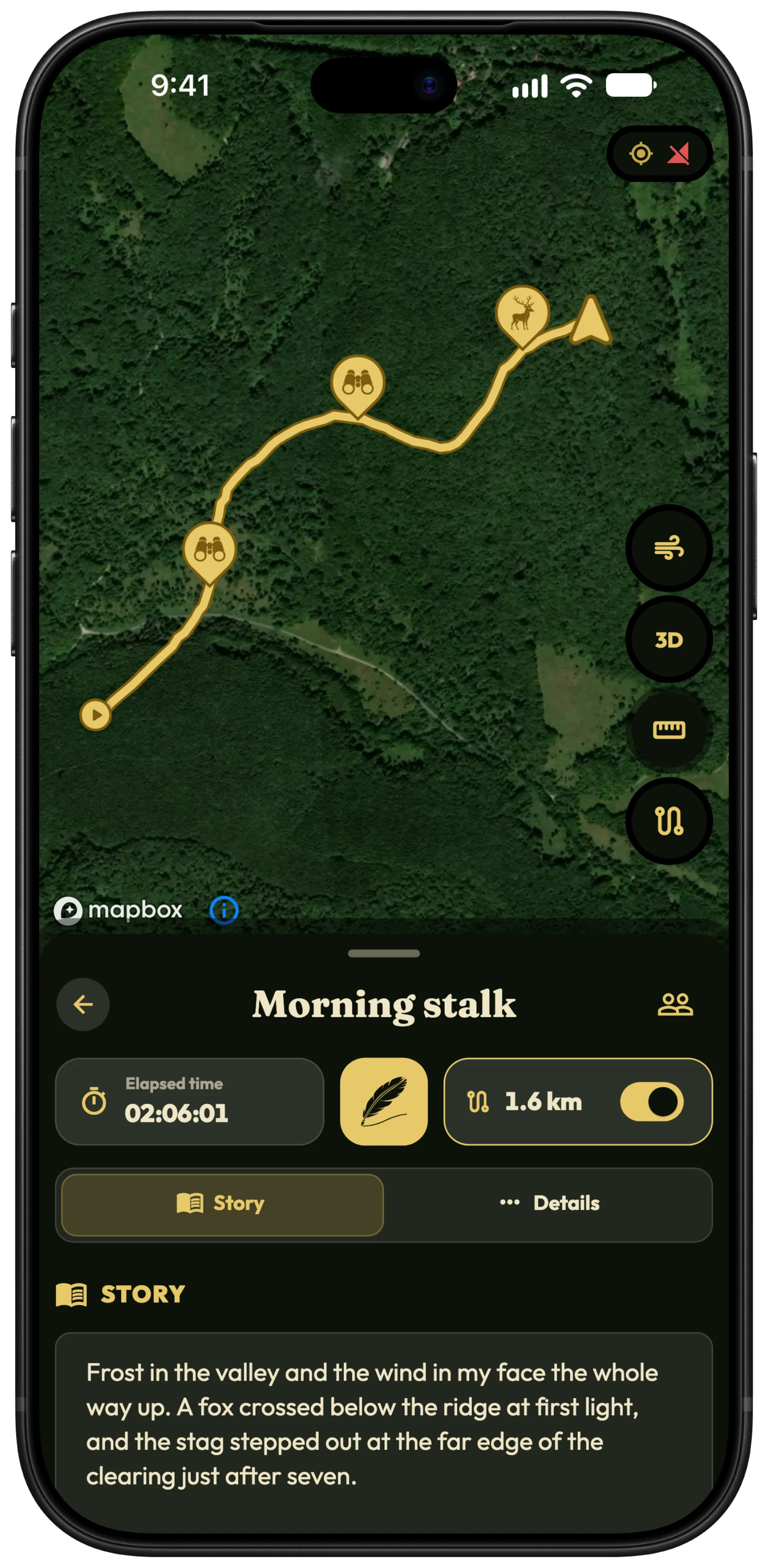
Switch Path on
- Open a running hunt.
- Find the panel with Path and Distance traveled.
- Turn on the Path switch. The route starts recording from where you stand.
- Put the phone away. The distance keeps adding up as you walk.
- Turn Path off whenever you stop to sit; the pause shows as a gap, not as a straight line.
Tip Path only records the route. Your live position shows on the hunt's map either way, and marking a harvest where it happened never needs Path.
Allow location the right way
HunTracker only asks for location while the app is in use, never "always". A running hunt counts as in use, even with the screen off.
- When the app asks, allow location while using the app.
- Keep precise location on. With approximate location nothing can be recorded, and the app shows Allow precise location to fix it.
- On Android, the first hunt asks you to Keep HunTracker running during the hunt. Follow it to turn off battery optimisation for HunTracker.
- On Android phones with a battery saver, also let HunTracker use GPS in the background while the saver is on.
If the route has gaps
A gap means the phone stopped HunTracker in the background, or the location was not precise. If the app was closed, HunTracker says it stopped following your hunt; open it again and recording carries on.
Do not swipe HunTracker away during a hunt, check that precise location is on, and on Android check the battery settings above. Deep in a valley or under thick cover the GPS signal itself can be weak, which shows as a jagged line rather than a gap.
Replay the route afterwards
- Open the finished hunt and its map.
- Tap Replay route on the timeline under the map.
- Watch the route draw itself, with arrows for the direction and dashed lines where Path was paused. On a shared hunt every hunter has a line of their own.
Free and Pro
Path recording, saved routes and the replay timeline are part of Pro. Without Pro, each hunt's map shows one pin with its location. Compare Free and Pro →
More about the hunting GPS app →
Questions and answers
Does the GPS work without mobile signal?
Yes. GPS needs no mobile data, so the route keeps recording where there is no coverage and syncs once you are back in range.
Does Path drain the battery?
It uses the GPS, like any route recorder, but HunTracker records only while a hunt runs with Path on. Turning Path off during a long sit saves battery.
Why does HunTracker not ask for "Always" location?
It does not need it: a running hunt keeps working in the background with location allowed while using the app, and nothing is recorded outside a hunt.
Still stuck?
Write to us and say which phone and app version you use. A real hunter on the team answers, usually within a day.